Homework check by photo in Family Track: how it works
·
Also available in: Русский Español Deutsch Français Italiano Português (Brasil) Polski Türkçe Bahasa Indonesia العربية हिन्दी
In short: create a photo chore on the Chores board and tick This is homework. Your child photographs the notebook pages in inlo, the app looks at the work in about half a minute and sends you a summary: subject, topic, which exercises are done, what is unfinished. It does not grade the work or check whether answers are right, so the decision and the minutes stay with you.
The short answer
Homework check by photo helps in one specific situation: your child says "I did it all", and you have no time to check. The app looks at the photos of the notebook and tells you what is on them: whether it is a notebook at all, the subject and topic, which exercises are done, what was started and left unfinished, and what your child has not touched. If you said what was assigned, it checks against the exercise numbers.
This is a hint, not a grade. The app does not check spelling or whether the answers are correct, and it can misread handwriting. That is why you credit the minutes for homework yourself, with the Confirm and pay button.
The check works inside the Chores board; the general guide to it is here: how to give your child chores for screen minutes. The Chores board and the homework check are free.
How to turn it on
In Family Track open Controls, then Chores board, and tap Add.
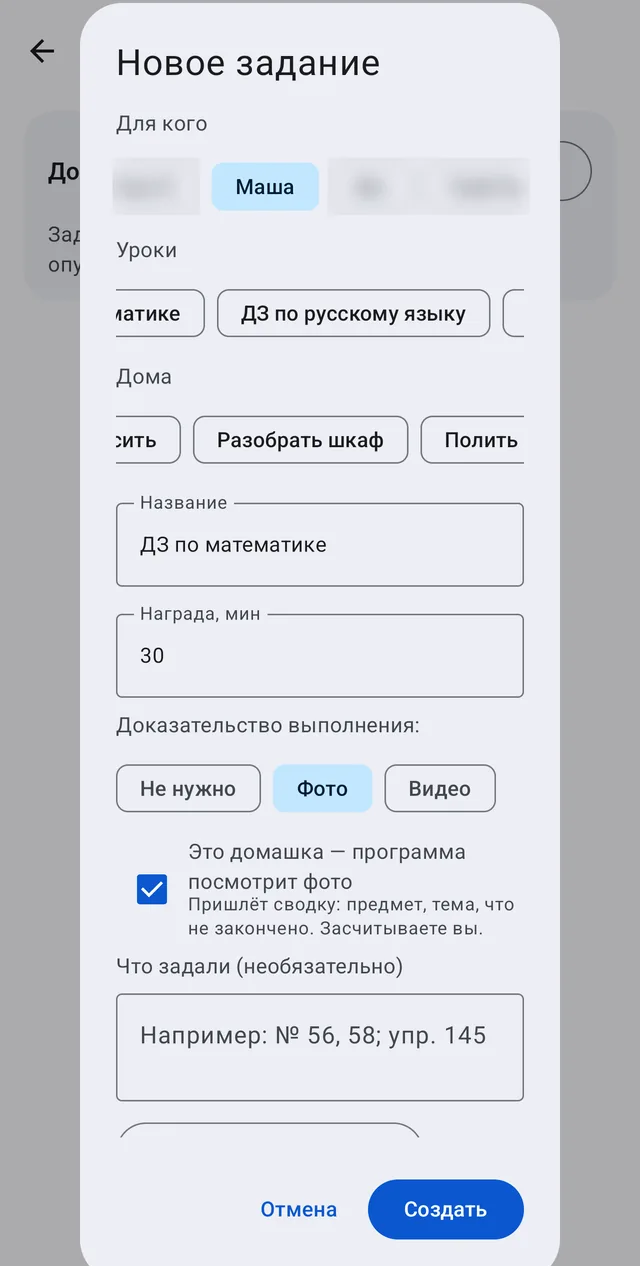
- Pick a template from the Lessons row, for example math homework, or type a name
yourself.
- Under Proof of completion choose Photo.
- Make sure This is homework - the app will look at the photo is ticked. If the name
looks like homework, it is ticked automatically.
- Optionally fill in What was assigned: exercise numbers as text, or a photo of the
school diary, the board or the class chat, up to three photos. Then the app will check the work against the exercise numbers.
- Tap Create.
A shortcut on Android: a screenshot of the homework from the class chat or the online school diary can be sent to Family Track with the Share button, option Assign as homework. A ready chore opens with a photo and the What was assigned field already filled in.
How your child hands it in
In inlo your child opens Earn more, taps Take it on the homework, and when it is done, taps Take a photo of the page.
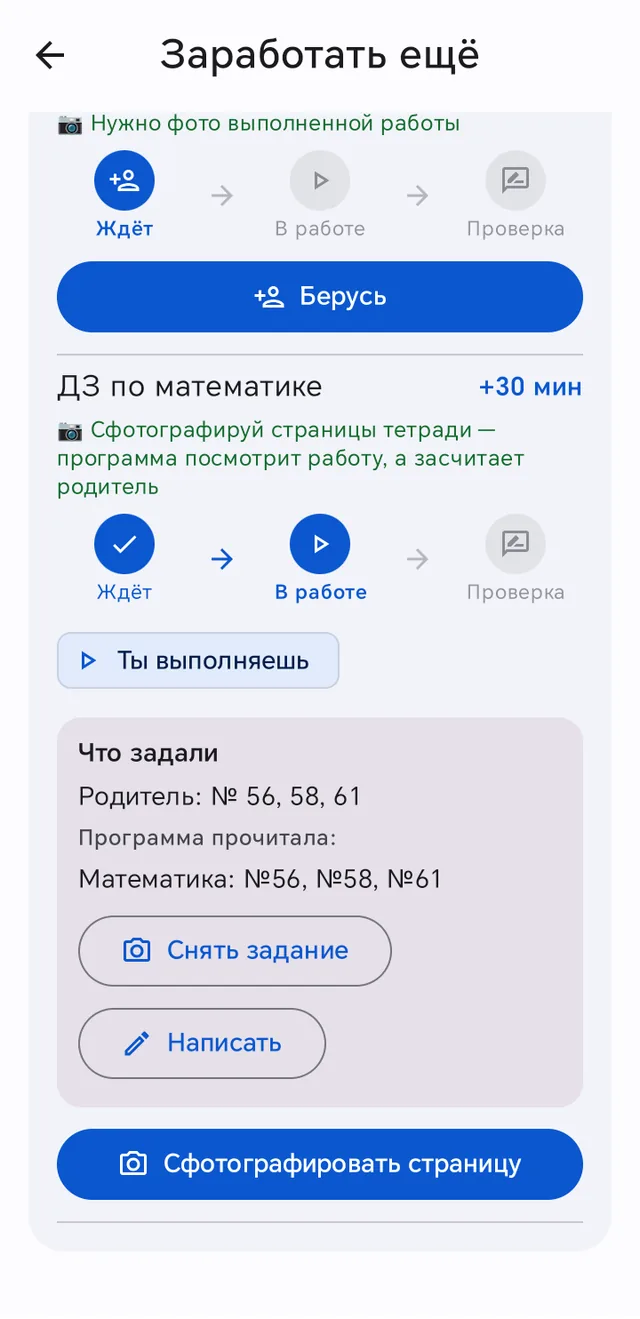
After the photo, the What should we send? screen opens. Your child can select the part they need with a frame, circle it with a finger or send the whole page, rotate the photo and retake it. Only the selected part goes to the server; the rest stays on the phone.
If there are several pages, your child adds them with the One more page button; the app looks at up to five pages. Then they tap Hand in for checking. The screen can be closed, and the work will be sent by itself.
What the app does
The app looks at each page separately and determines:
- whether it is a notebook and not a screen, a textbook or a blank sheet;
- the subject and topic;
- which exercises are done;
- what was started and not finished;
- which assigned exercises your child has not started, if you said what was assigned;
- whether your child is handing in a photo they already handed in before.
The app also picks an inlo lesson on the same topic, so your child can work through it and earn minutes on top of the homework.
This usually takes about half a minute.
What the parent sees
You get a notification that homework was handed in and needs your confirmation, with a short summary: subject, topic and what is unfinished. On the Chores board the chore gets a What the app noticed card with the same summary and a link to a lesson on the topic. If the app noticed an obvious mistake in meaning, it flags it with the word Check. Only you see these remarks.
Then it is your call: Confirm and pay if everything is done, or Send back with a comment on what to finish.
What your child sees
The app writes to your child only if there is something to say:
- some exercise is not visible in the notebook, and if it is done, they need to photograph
the page again;
- something looks unfinished, and they can finish it and retake the photo before the parent
checks;
- there is a lesson on this topic that can earn them more minutes.
Your child does not see remarks about mistakes, and there is no grade.
Limitations
- It is not a teacher. The app does not grade, does not check spelling and does not say
whether an answer is right. It can misread handwriting.
- Photos only. Chores with video or without proof are not checked. An oral assignment
cannot be checked by photo.
- Ten checks a day per child. Beyond that, and also if the check fails, you get a regular
notification that the chore was handed in, without a summary.
- Fully works on Android. Selecting an area, several pages and a photo of the assignment
are available in inlo for Android. If you use Family Track for iPhone, the This is homework checkbox is not in the chore window yet: the app recognizes homework by its name, for example math homework.
- You need a recent version of inlo. Update the app on your child's phone from RuStore.
Where the photos are processed
The app looks at notebook photos on Family Track's own server. They are not sent to third-party AI services.
Questions and answers
Does the app credit minutes for homework by itself?
No. It sends a summary, and you credit the minutes with the Confirm and pay button. That way a mistake by the app will not turn into minutes for work that was not done.
Does the app check whether the work is solved correctly?
No. It sees which exercises are done and what is unfinished, and flags obvious mistakes in meaning with the word Check, for you only. It does not check whether answers are correct or the spelling.
What if I got a regular notification without a summary?
It means the check failed: the daily limit ran out, the photo is unreadable, or the server was busy for more than fifteen minutes. Look at the photos yourself on the Chores board.
Can I assign homework without typing the exercise numbers?
Yes. On Android, take a screenshot of the assignment from the class chat or the school diary and tap Share, then Assign as homework in Family Track. You can also attach a photo in the What was assigned field.
How much does it cost?
Nothing. The homework check works inside the Chores board, and the board is free.
Family Track: your child earns screen time on their own
Lessons, reading aloud, exercises in front of the camera and household chores turn into minutes for games and videos. The app sets the rules, not the parent, and the bargaining stops. The learning part is free.
Family Track on Google PlayFamily Track for iPhone