How to give your child chores for screen minutes in Family Track
·
Also available in: Русский Español Deutsch Français Italiano Português (Brasil) Polski Türkçe Bahasa Indonesia العربية हिन्दी
In short: in Family Track your child earns minutes in three ways. Your chores: you post a task on the Chores board, your child takes it in inlo, hands it in with a photo, you approve, and the minutes land in their account. Lessons and reading: minutes are credited automatically for a passed test and for reading aloud. Exercises in front of the camera: the camera counts the reps.
The short answer
The minutes your child earns build up in their account, and they spend them themselves with the Use accumulated time button in inlo. There are three ways to earn them:
- Chores from you. The Chores board in Family Track: tidy your room, do your homework,
take out the trash. You set the reward in minutes and confirm yourself that the job is done.
- Lessons and reading in inlo. A section of a school textbook followed by a test, and
reading aloud with speech recognition. Minutes are credited automatically.
- Exercises. Squats, push-ups and other exercises in front of the phone camera; the app
counts the reps itself.
Below is each method step by step. The screenshots were taken in Family Track for Android. On iPhone the sections have the same names, but the new chore window has fewer fields for now: there is no choice of child and no homework checkbox.
Method 1. A chore on the Chores board
How to post a chore
In Family Track open Controls, then Chores board, and tap Add.
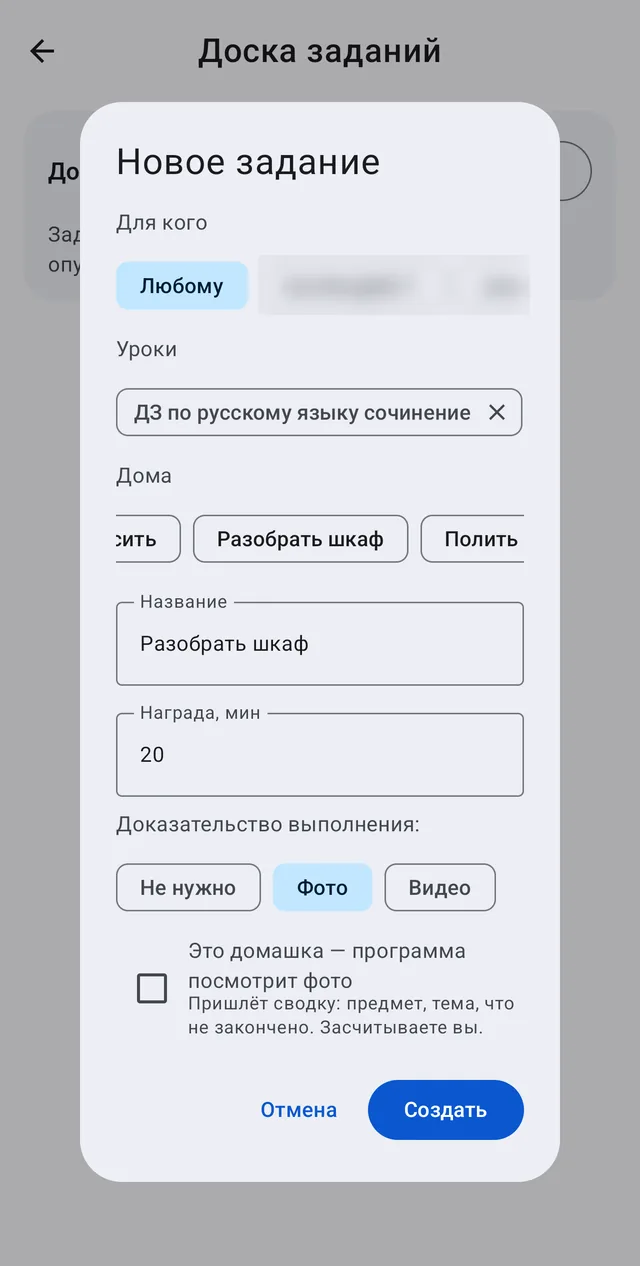
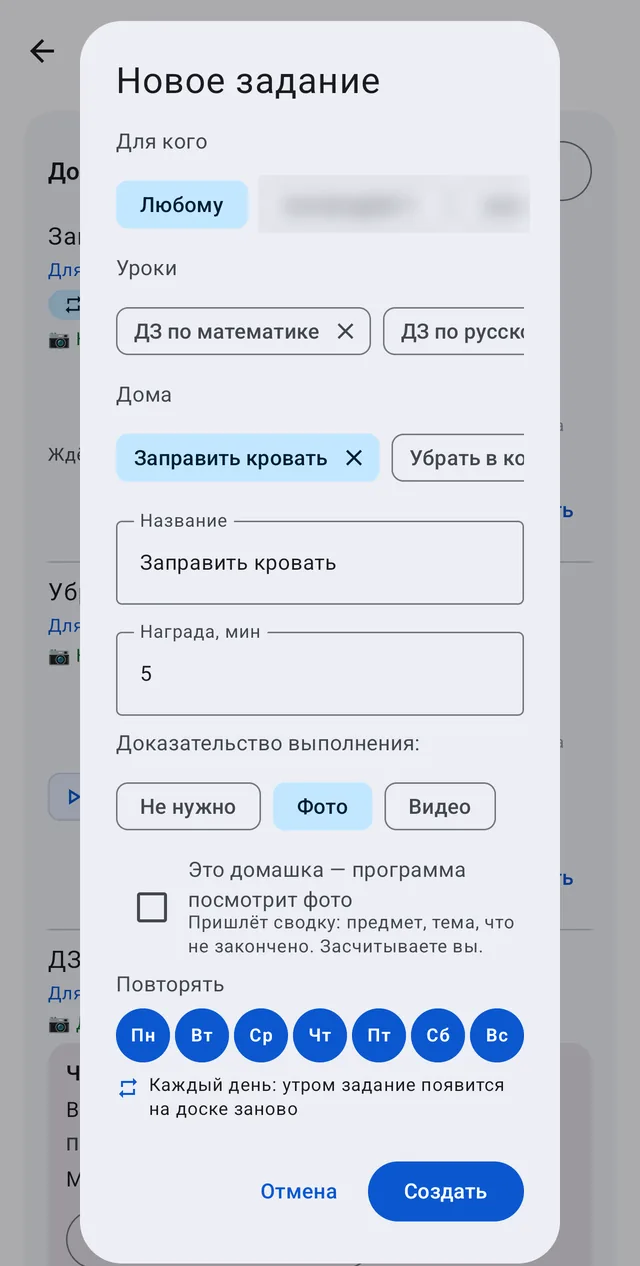
In the new chore window:
- For whom. If you have several children, you can pick one. A chore for everyone goes to
whoever taps Take it first.
- Templates. The Lessons and Home rows: ready-made tasks with a suitable reward, such as
make the bed, wash the dishes, math homework. Tap a template and the name and minutes are filled in for you. Your previous chores show up here too.
- Name and Reward, min. The reward can be changed.
- Proof of completion. None, Photo or Video. A photo makes checking easier: your child
photographs the result right in inlo, otherwise the chore cannot be handed in.
If you choose Photo and the name says it is homework, a This is homework - the app will look at the photo checkbox appears. More about it in a separate article: homework check by photo.
Tap Create. If a PIN is turned on in Family Track, the app will ask for it.
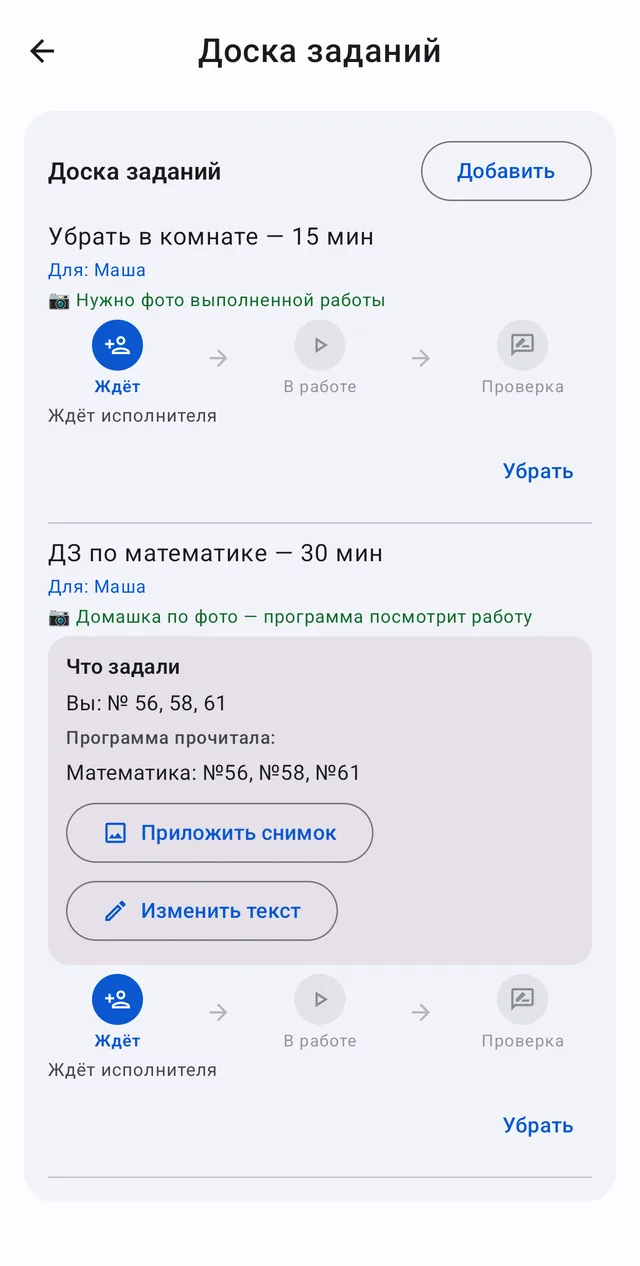
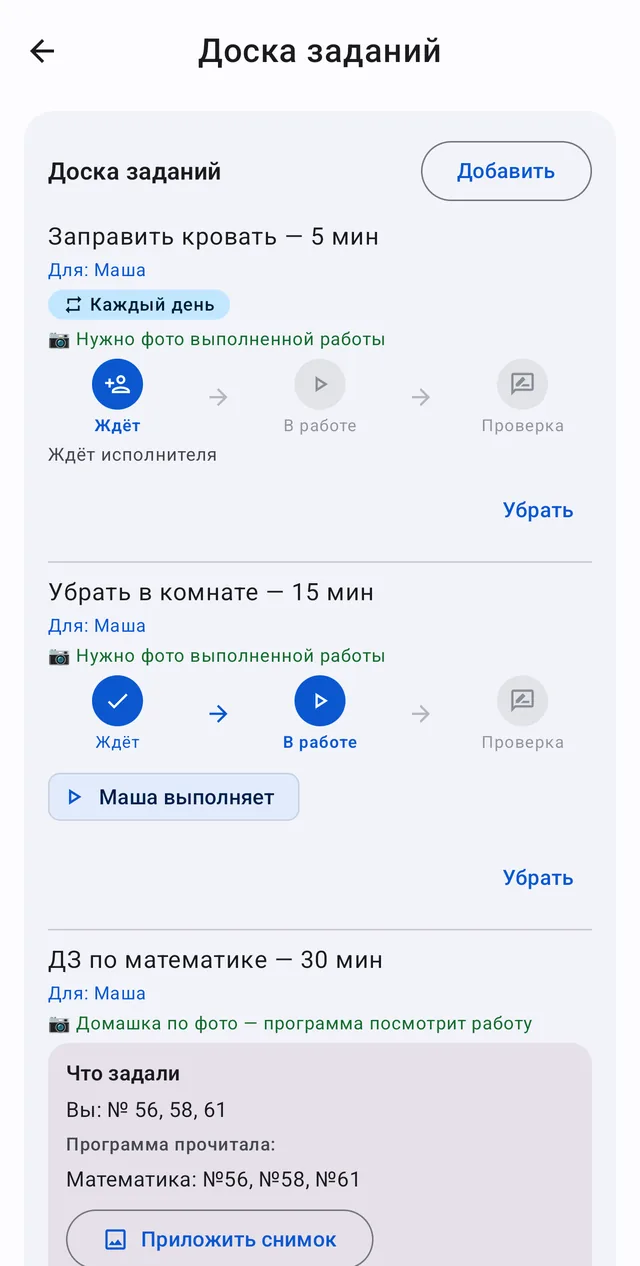
The board shows the stage of every chore: Waiting, In progress, Checking.
What your child sees
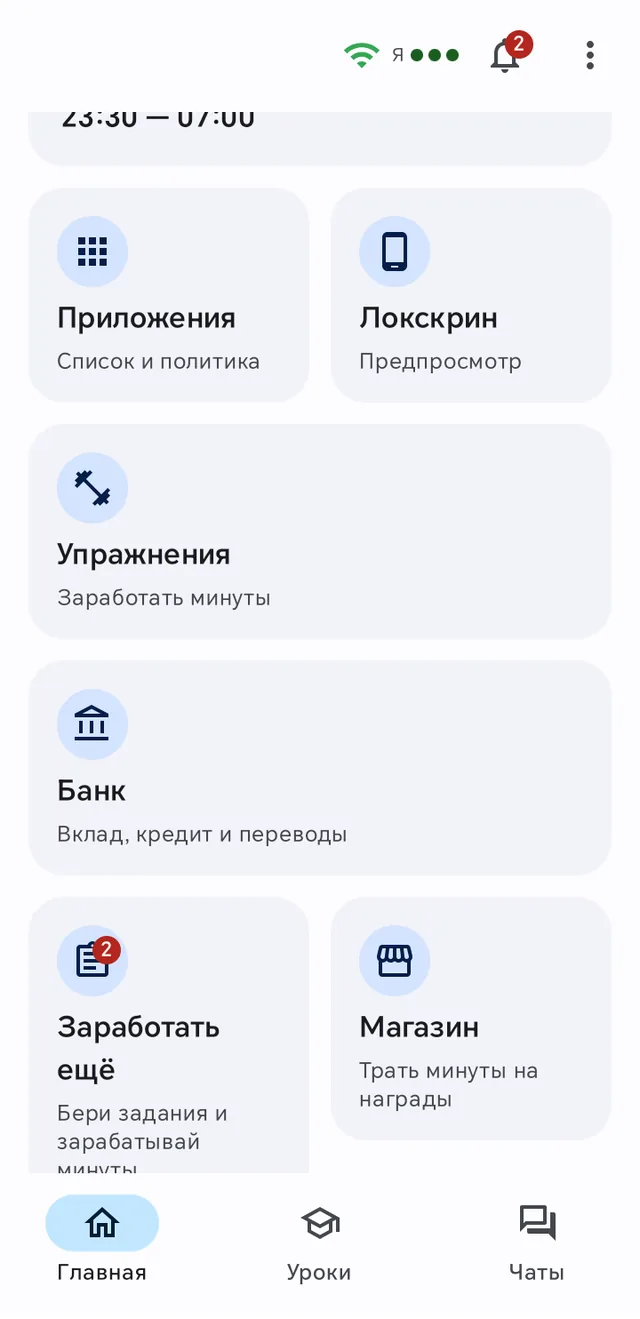
The inlo home screen has an Earn more tile, and the number on it shows new chores. Inside are chores with their reward and a Take it button.
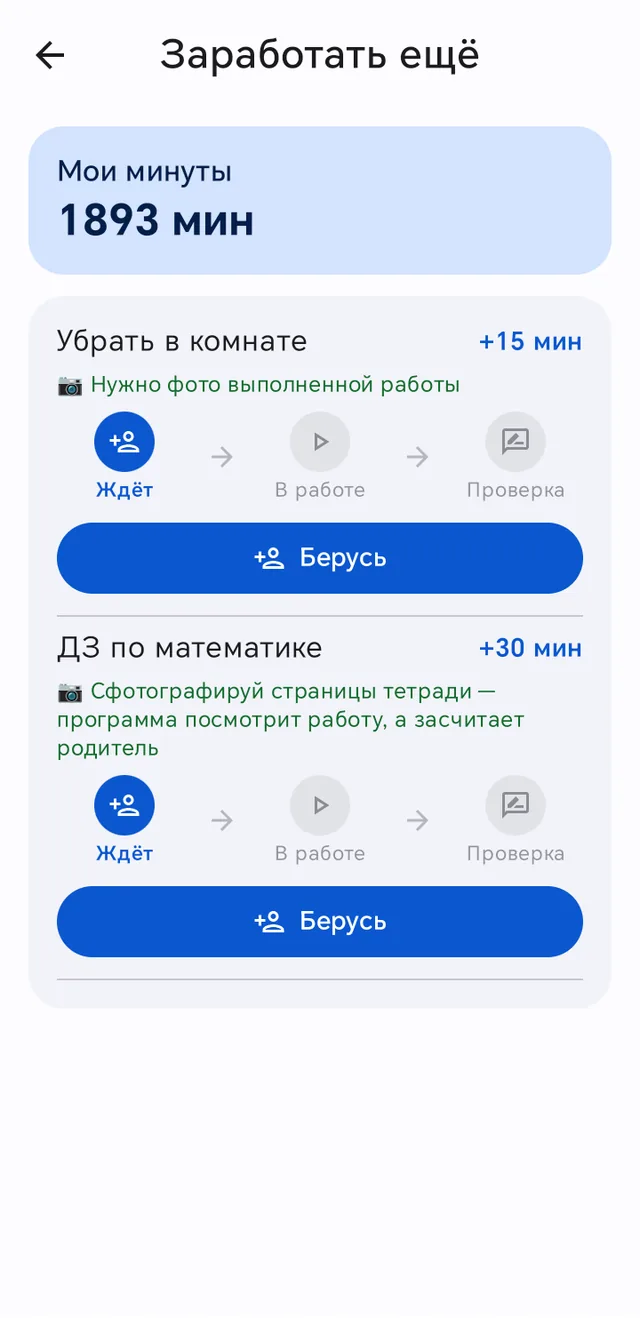
Your child taps Take it, does the job and hands it in: with the I'm done button or, if a photo is needed, with Take a photo and submit. You get a notification that the chore was handed in.
How to approve
Open the Chores board, look at the photo and choose:
- Confirm and pay. The minutes are added to your child's saved time right away, and the
chore leaves the board.
- Send back. The chore goes back to your child along with the photo, and you can write
what to fix: retake the photo, correct mistakes, finish the job.
- Remove. Take the chore off the board. No minutes are credited for a removed chore.
Repeating chores
Making the bed, washing the dishes, morning exercise: these are needed every day, and you will not have to create them again. This feature is coming in the next Family Track update.
In the new chore window, tick the days of the week under Repeat. Tick all days, and the chore will appear on the board by itself every morning. Tick only weekdays, and it will appear on weekdays. For frequent tasks like making the bed, the days are already ticked in the template.
How it works:
- A new chore appears in the morning, not before six o'clock by the time on your child's phone.
- As long as nobody has taken yesterday's chore, a new one is not added, so the board does not
fill up with identical tasks.
- If yesterday's chore was taken or handed in, it is finished and checked as usual, and
today's appears next to it.
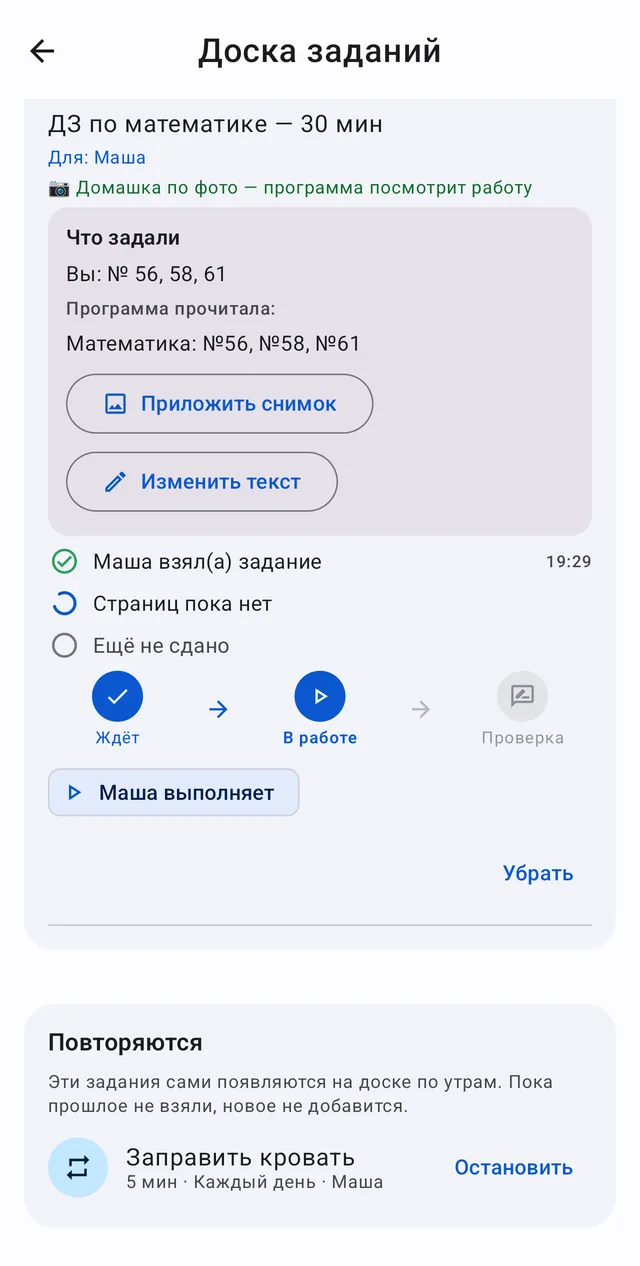
- All repeats are listed at the bottom of the board under Repeating. The Stop button
turns a repeat off; chores already on the board stay.
Good to know
- If your child has a loan open in the Family bank, part of the reward goes toward paying off
the debt. By default it is half.
- The Chores board is free, no subscription is needed for it. You do not need to turn on the
Family bank for chores: it only handles savings, loans, transfers and the reward shop.
- If your child has an old version of inlo and sees "The family bank is switched off" instead
of chores, update inlo from RuStore.
Method 2. Lessons and reading in inlo
What your child does
In inlo, the Lessons tab at the bottom has an Open lessons button.
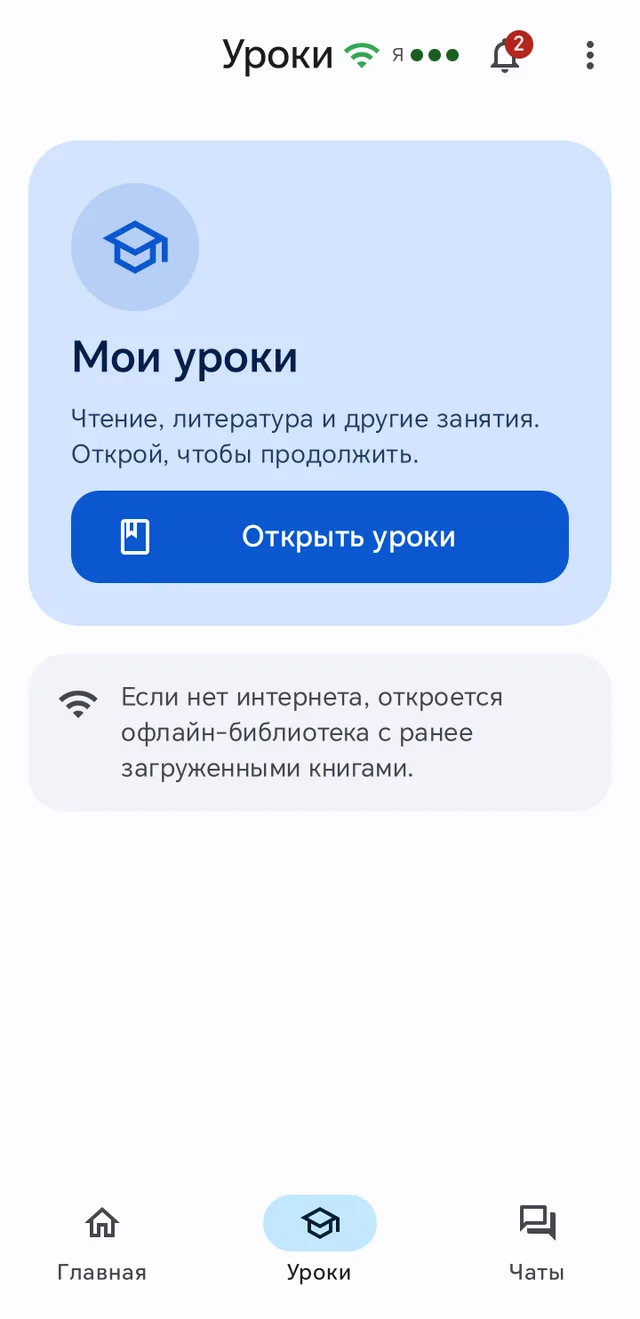

There are two kinds of activities:
- Subject lessons. Your child reads a section of the textbook for their grade and takes a
test. The test goes step by step: simple questions first, then harder ones, and one final problem at the end. If your child makes a mistake, the app works through it with them and lets them try again. The subjects depend on the grade: math, Russian, physics, history, literature and others. The lessons follow the Russian school curriculum.
- Reading. Your child reads a book aloud, the app listens through the microphone and
highlights the words that were read. Minutes are given for what was read.
Minutes are credited automatically, nothing needs to be approved.
How many minutes to give
In Family Track open Controls, then Study rewards.
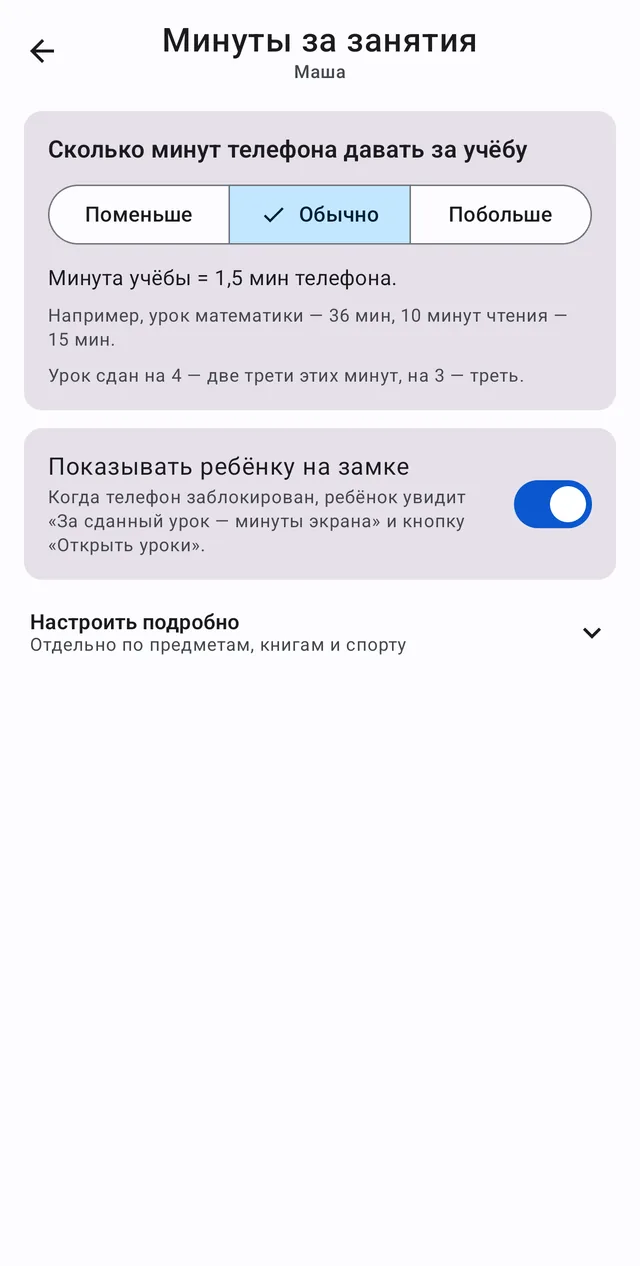
- How much phone time for studying. Less: a minute of studying gives a minute of phone
time. Normal: a minute and a half. More: two minutes. The app calculates how much a lesson is worth based on your child's grade and shows an example right on the screen.
- If the test is passed with a good grade, two thirds of the minutes are credited; with a
passing grade, one third.
- Show it on the child's lock screen. When the phone is locked, your child sees that a
lesson earns minutes, and the Open lessons button.
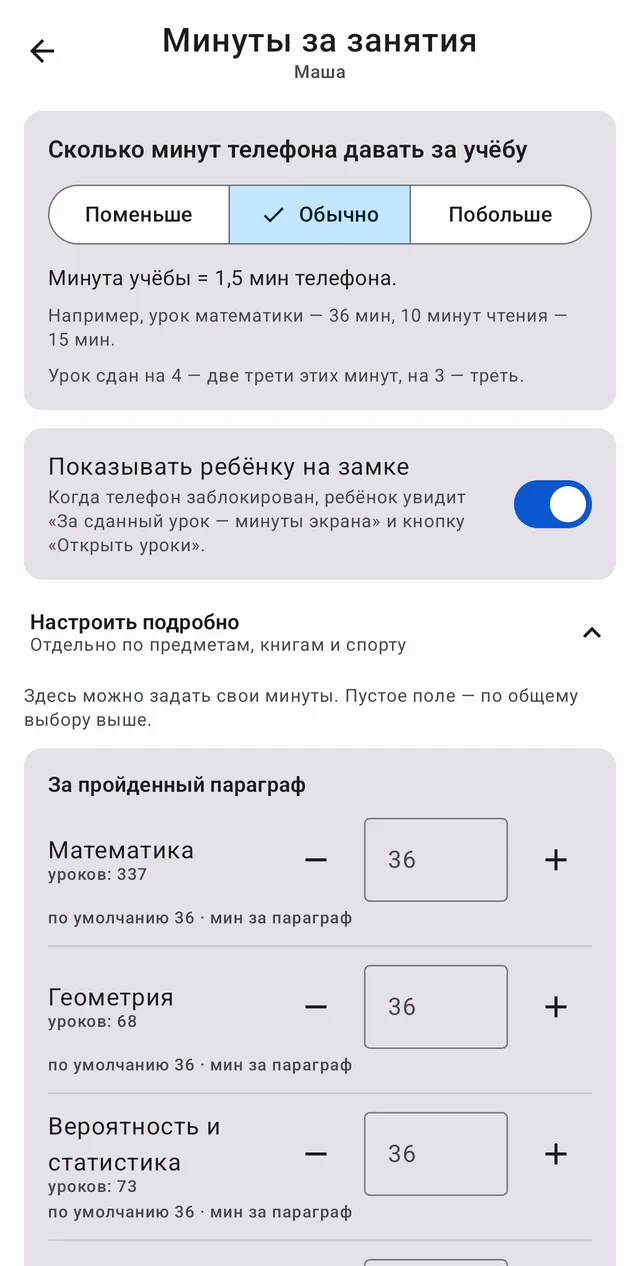
- Fine-tune. Your own minutes per section for each subject, the reading rate and specific
books. An empty field means the overall choice above applies.
Which subjects and in what order
In Family Track open Controls, then Lesson schedule. The screen is called Subject rotation.
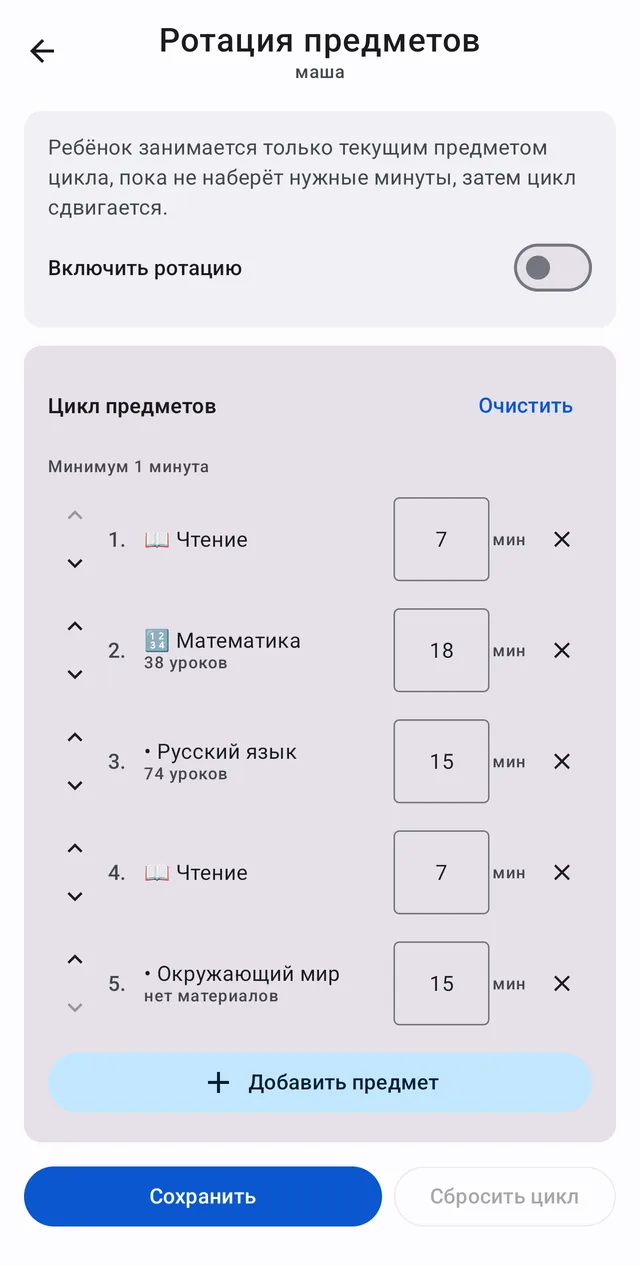
Your child studies only the current subject until they reach the required minutes, then moves on to the next one. That way they will not spend the whole day on one favorite subject.
- Enable rotation turns the schedule on and off.
- Subject cycle. Subjects in order. The arrows move a subject up or down, the cross removes
it, and Add subject adds one. Under each subject you can see how many lessons it has for your child's grade. If it says no content, the schedule will skip that subject.
- The number next to a subject: how many minutes need to be earned to move on to the next one.
After making changes, tap Save.
How study is going
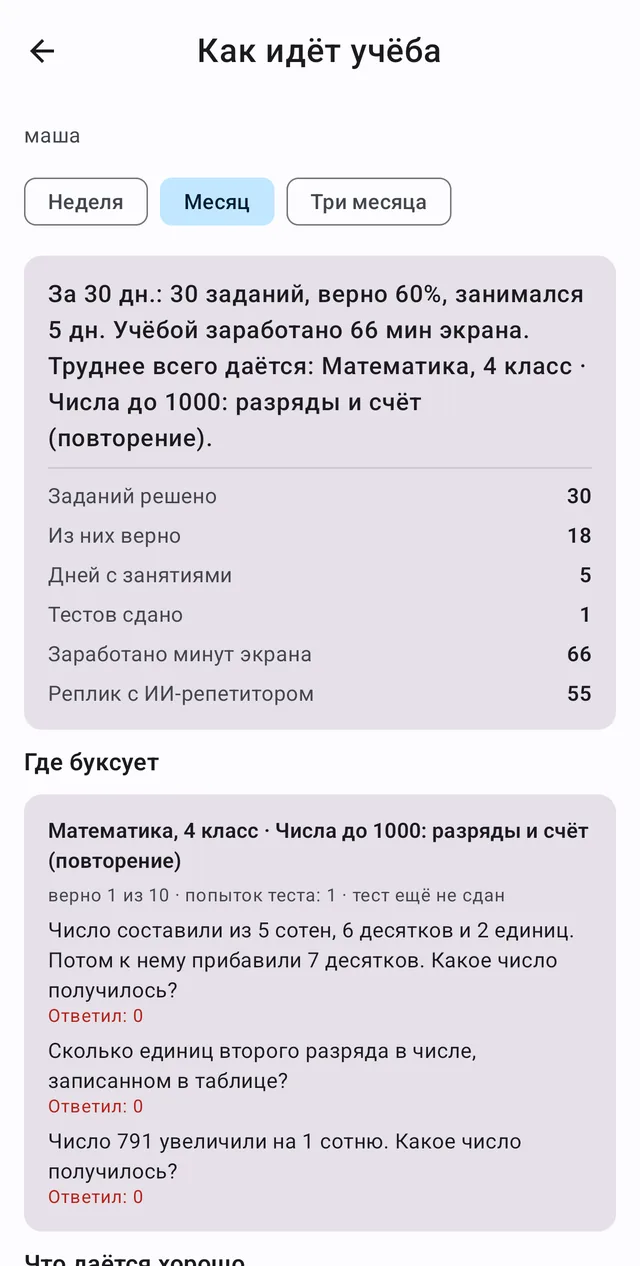
Under Controls, How study is going you can see how many tasks your child solved, how many correctly, how many minutes they earned and where they get stuck, with the questions and answers themselves.
Method 3. Exercises in front of the camera
The inlo home screen has an Exercises tile. Your child picks an exercise, places the phone so the camera can see them, and does the reps. The app counts them itself and credits minutes.
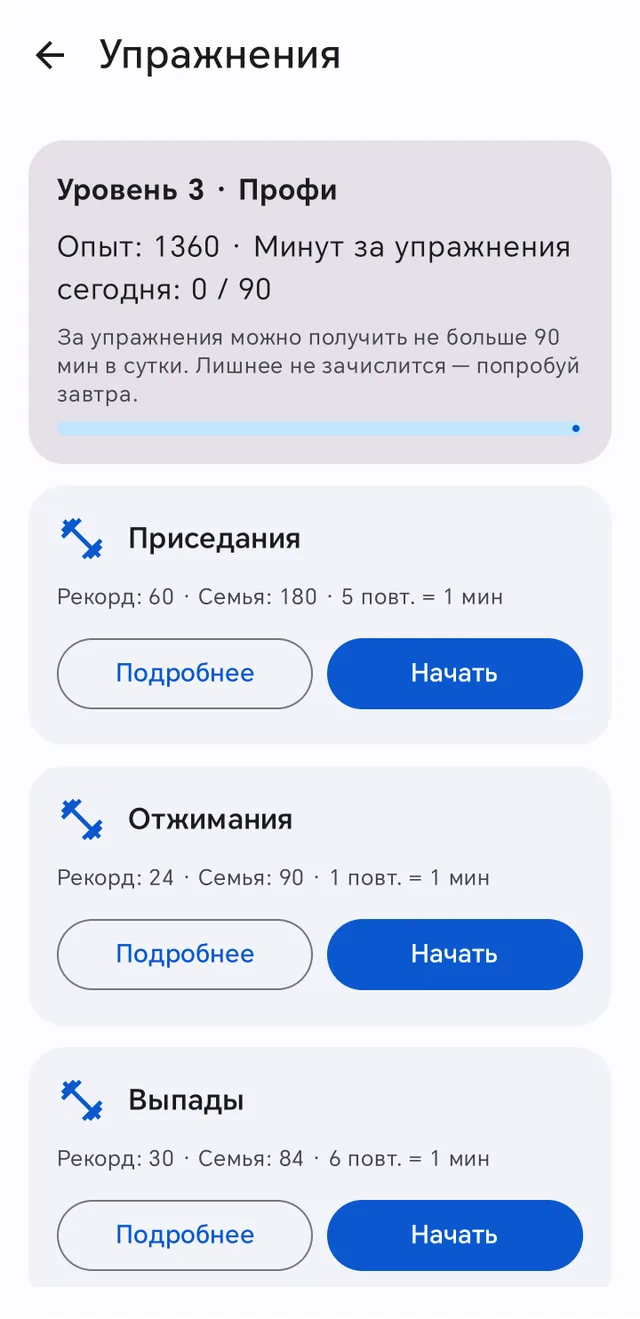
There are squats, push-ups, lunges, pull-ups, dips, leg raises and sit-ups. Each one shows how many reps earn a minute, and at the top there is a daily cap on minutes for exercises.
The first parent can set how many reps earn how many minutes and which exercises are available: Controls, Study rewards, Fine-tune, the Minutes for sport section.
Which method to choose
| Method | Who checks | Good for |
|---|---|---|
| Chores board | You, by photo or by eye | chores, homework, one-off requests |
| Lessons and reading | The app, with a test and the microphone | school curriculum without your involvement |
| Exercises | The app, with the camera | moving instead of the phone |
A combination works well: lessons on a schedule every day, and a few chores on the board on top of them. More on which tasks deserve a reward and which do not: how to get your child to do chores.
Questions and answers
Why can't my child see the chore on the board?
Check that the chore was created for this child or for everyone. If your child sees "The family bank is switched off" instead of chores, they have an old version of inlo: update it from RuStore.
Can I make a chore that repeats every day?
Yes. In the new chore window, tick the days of the week you need under Repeat, and the chore will appear on the board by itself every morning. The feature is coming in the next Family Track update.
When does my child get the minutes for a chore?
Right after you tap Confirm and pay. While the chore is being checked, no minutes are credited.
Do I need to approve lessons?
No. Minutes are credited automatically for a passed test and for reading aloud. You can see what your child did in the How study is going section.
How many minutes should I give for a chore?
A guide based on the templates: 5 minutes for a made bed, 10 for washed dishes, 15 for tidying a room, 20 or 30 for homework depending on the subject. The main thing is that the price is clear in advance and does not change after the fact.
Is this a paid feature?
No. The Chores board, the Family bank, lessons, reading and exercises are free.
Family Track: your child earns screen time on their own
Lessons, reading aloud, exercises in front of the camera and household chores turn into minutes for games and videos. The app sets the rules, not the parent, and the bargaining stops. The learning part is free.
Family Track on Google PlayFamily Track for iPhone